Ample Construction Pro is an attractive, modern, easy to use and responsive WordPress theme with colorful design and stunning flexibility. This theme is capable of tackling the overall needs of all construction websites including business and others. Ample Construction Pro can also be used for business and corporate websites. The advanced theme options and available various widgets with drag and drop features will help to customize your site as you need. Some of the available options are awesome slider section, header options, footer options, layout design options Color options, widget options, custom copyright options integrated social icons using menu, reset color option and lots of other available options will allow you to create a unique website as you want. This theme will help you to create very high-Quality construction website easily with no time at all.
Theme Installation
Via WordPress
Log in to the WordPress Administration Panels.
Go to the Appearance panel, then Themes.
Click Add New.
Upload the Zip file of theme, ample-construction.zip
After installing the theme Click Activate button.
Via FTP
Use your FTP software to browse to wp-content/themes folder.
Extract ample-construction.zip and upload the folder.
Once it’s uploaded, go to your WordPress Admin, browse to Appearance > Themes.
Click the Activate link.
One click demo import as our demo version:
Adding Contents
Posts
To create post on your site, it’s easy. Follow the below listed methods.
Go to Administration Panels
Go to Posts and Click on Add New
Give the title of the post and add the content
Set the featured image for the post from right corner.
Set that post on the Category.
Click on Publish Button.
Add more post like the above methods.
Pages
To create page on your site, it’s easy. Follow the below listed methods.
Go to Administration Panels
Go to Page and Click on Add New
Give the title of the page and add the content
Set the featured image for the post from right corner.
Click on Publish Button.
Add more page like the above methods.
Categories
To create categories, follow the below steps.
Go to Administration Panels
Go to Posts > Categories
Give the title of the category
Click on Save
The added category will appeared on the Add Post Page.
Top Header Info Bar Set Up
Menu Set up
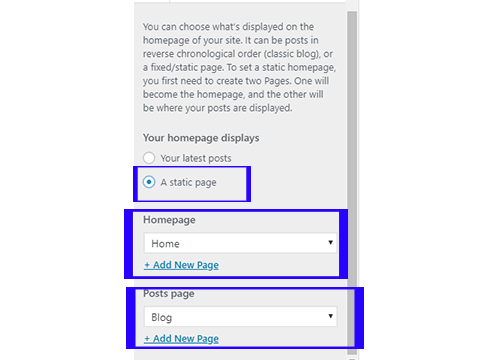
For homepage setting
For homepage setting First, you need to choose static page.
go to Appearance > customize > HomePage setting > choose Static page
then choose home page and post page.
Then You need to follow these step to set up homepage as follow
How To Edit Slider section After import demo data
How To Edit Service section After import demo data